By Game Coach TeamNov 29, 2025
Mastering Modes: Create, Edit, and Organize
Learn how to use the Mode System to create dynamic, multi-stage strategies.
guidemodesadvanced
Video Tutorial
What are Modes?
Modes allow you to create different states or "layers" for your strategy board.
Think of modes as a way to organize:
- Game Modes: Switch between Hardpoint, CTF, or Slayer setups on the same map.
- Callouts: Toggle map callouts on and off without cluttering your main strategy.
- Weapon Placements: Show where power weapons spawn or where you want your team to control.
- Utility: Show grenade spots or utility usage for specific executes.
Creating a Mode
To create a new mode:
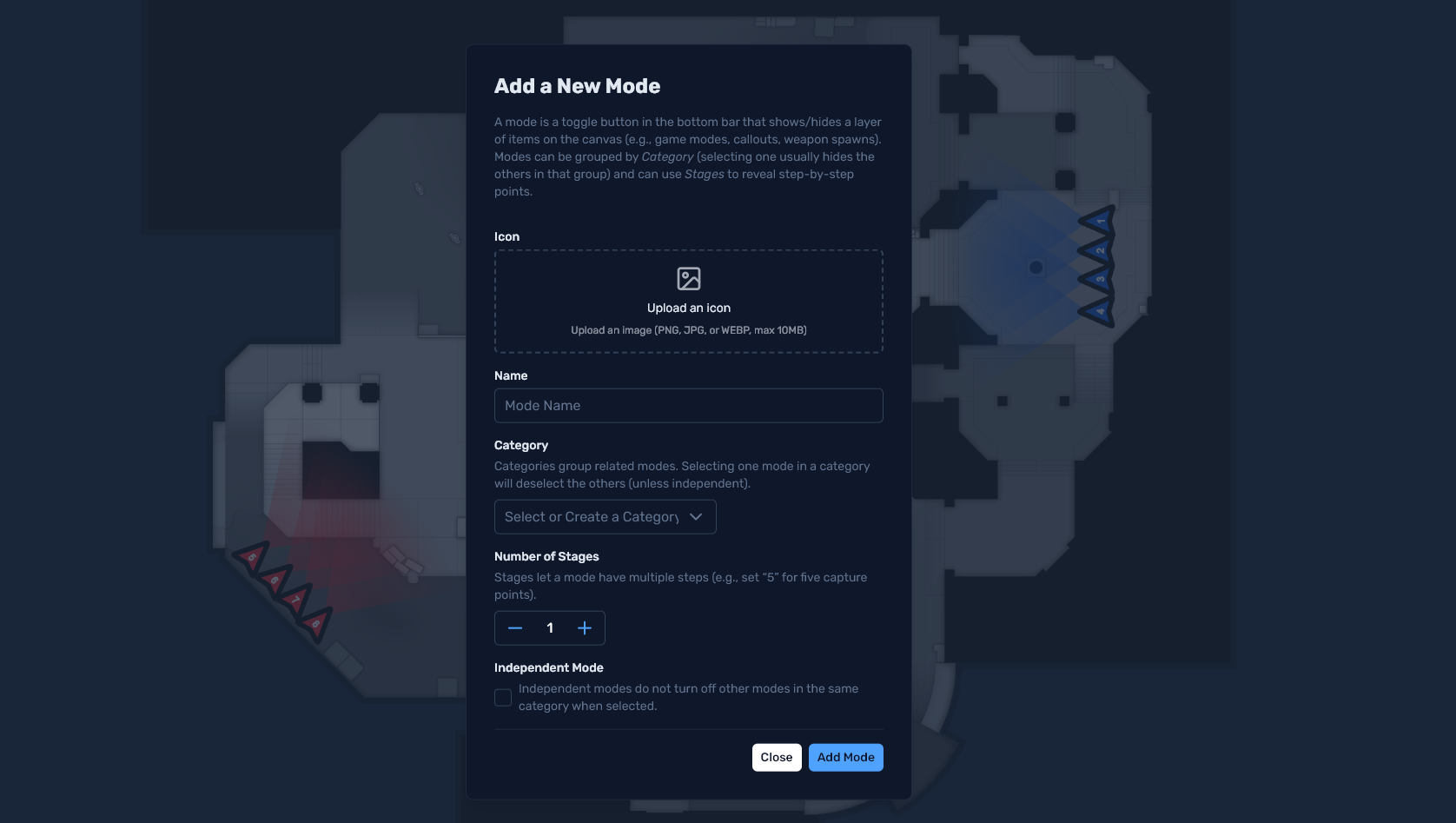
- Click the + button in the bottom right corner of the screen.
- Upload an icon for your mode.
- Give your mode a name and click create.
Independent vs. Non-Independent Modes
When creating a mode, you can choose whether it is Independent or not.
- Non-Independent (Default): Activating this mode will turn off other non-independent modes of the same type. This is useful for mutually exclusive states like "Attack" vs "Defense" or different game modes where only one should be active at a time.
- Independent: This mode can be active at the same time as other modes. This is perfect for adding map information, overlays, callouts, or items that you want to toggle on/off regardless of the main strategy phase.
Editing a Mode
When you want to modify a specific mode:
- Click on the mode icon in the bottom right panel to activate it.
- Toggle the Edit Mode switch.
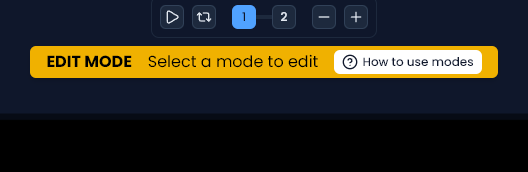
- You will see an Edit Mode Bar appear below the slides panel, indicating which mode you are currently editing.
Note: Any item you add to the board while in Edit Mode will be assigned to that mode. This means it will appear when the mode is active and disappear when it is inactive.
Locking Behavior
Items added to a mode are part of that mode and can be selected and moved when the mode is active.
However, some items like Hardpoints or Areas of Interest should not be accidentally moved during strategy planning. For these items:
- Select the item.
- Click the Lock button in the properties panel.
Behavior:
- In Edit Mode: The locked item is still selectable and moveable, allowing you to adjust its position.
- Outside Edit Mode: The item is visible but unselectable, preventing accidental movement while you are planning your strategy.
Deleting a Mode
To delete a mode:
- Enter Edit Mode.
- Select the mode you wish to delete.
- Click the Delete button (trash icon) in the mode panel.

Tips for Success
- Callouts: Create an independent mode for map callouts so you can toggle them on/off at any time.
- Hardpoints & Objectives: Use modes to show objective locations for different game types (e.g., Hardpoint rotations). Lock these icons so they don't get moved.
- Game Icons: Place moveable game icons (like weapons or vehicles) in a mode to show their spawn locations.
- Weapon Placements: Use modes to show different weapon setups or utility placements for specific strategies.
- Game Modes: Use non-independent modes to switch between completely different game states (e.g., "Slayer" vs "CTF" setups).
Relates to
Get Game Coach Pro